4 Hidden Logs to Check When Your Server Fails to Boot
In this article, you'll learn how to use 'dmesg', 'journalctl -b', '/var/log/secure' or '/var/log/auth.log', and kdump to find out why a Linux server failed to boot, from disk errors to kernel panics.
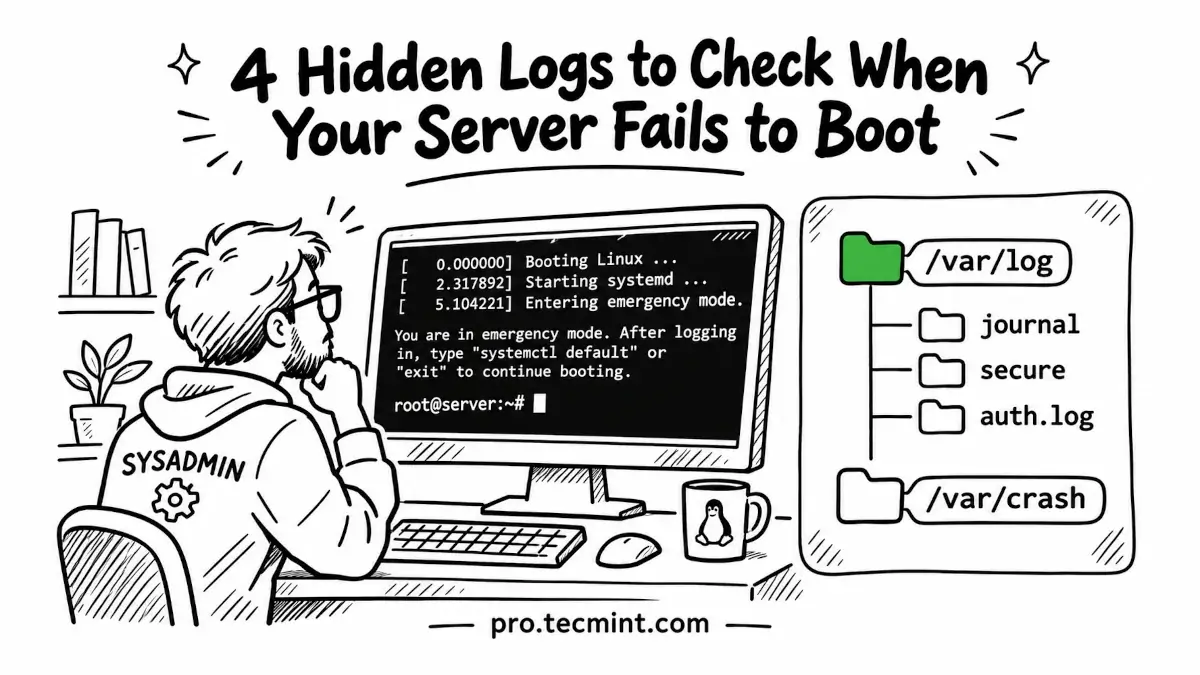
You patch a server in the evening, hit reboot, and it completely vanishes from the network. You open up the console and find it stuck at an emergency shell.
The only clue on the screen is a frustrating little line telling you to "check the logs", but if you look inside /var/log, you'll find hundreds of files that have absolutely nothing to do with booting.
To save your sanity, you just need to look at four specific places, where each one handles a different stage of the boot process. Once you figure out where the boot failed, you'll know exactly which log to open first.
Here is your quick-start troubleshooting guide:
dmesg(The Hardware & Kernel Log): Use this if your server stalls right after turning on, as it shows hardware failures, missing drivers, or drive errors before the main operating system even starts.journalctl -b(The System Log): Use this if the hardware is fine but services (like your database or web server) fail to launch.secureorauth.log(The Security Log): Use this if the server boots to a login screen, but completely locks you out or rejects valid passwords.kdump(The Crash Log): Use this if the server didn't just stall, but completely crashed or suffered a "kernel panic".