Chapter #23: Basic Bash Scripting for System Automation
In this chapter, learn how to write Bash scripts to automate repetitive tasks, manage system workflows, and schedule jobs to run automatically on Ubuntu.
In the previous chapter, we covered system monitoring and troubleshooting using htop, journalctl, and essential tools for diagnosing performance and connectivity issues.
Now we turn our attention to Bash scripting, which takes everything you've learned about Linux commands and transforms it into something far more powerful automation.
Instead of typing the same sequence of commands every day, you write a script once and let it run for you on demand, on a schedule, or in response to system events.
Whether you're a desktop user tired of manually cleaning up old files or a server administrator who needs to back up databases every night, Bash scripting gives you the ability to work smarter rather than harder.
The beauty of Bash scripting is that there's no new language to install, no development environment to configure, and no compilation step before running your code.
The shell you've been using all along is also a fully capable programming environment, and every command you've learned so far is already a building block for your scripts.
Here's what we'll cover:
- Your First Bash Script - understanding script structure, the shebang line, and execution permissions.
- Variables and User Input - storing values and making scripts interactive.
- Conditionals - making decisions with if/else statements and test expressions.
- Loops - repeating actions with for and while loops.
- Functions - organizing reusable logic for cleaner, more maintainable scripts.
- Practical Sysadmin Scripts - real-world examples you can use immediately.
- Scheduling Scripts with Cron - automating execution on a schedule.
By the end of this chapter, you'll be able to write scripts that automate common system administration tasks, saving you time while reducing the risk of human error.
Your First Bash Script
A Bash script is simply a text file containing a sequence of shell commands that execute one after another, just as if you had typed them manually in the terminal.
Understanding the Shebang Line
Every Bash script begins with a special first line called the shebang, which tells the system which interpreter should run the script:
#!/bin/bash
The #! characters followed by the path to the Bash interpreter instruct the operating system to use /bin/bash to execute the commands that follow.
Without this line, the system may try to run your script with a different shell, causing unexpected behavior.
Creating and Running Your First Script
Open a terminal and create a new script file using a text editor.
nano hello-system.sh
Type the following content into the file.
#!/bin/bash

# This is a comment - the shell ignores lines starting with #
echo "Hello! This is my first Bash script."
echo "Today's date is: $(date)"
echo "You are logged in as: $(whoami)"
echo "Your current directory is: $(pwd)"
Save the file and exit nano with Ctrl+O, then Enter, then Ctrl+X.
Before you can run a script, you must give it execute permission using chmod command.
chmod +x hello-system.sh
Now run it.
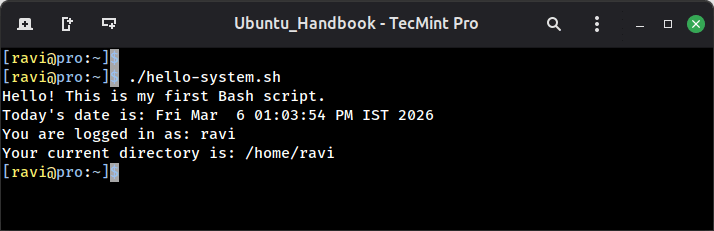
./hello-system.sh
You'll see the date, your username, and the current directory printed to the terminal. The ./ prefix tells the shell to look for the script in the current directory rather than searching system-wide paths.
The $(command) syntax is called command substitution, which runs the command inside the parentheses and inserts its output directly into the string. You'll use this constantly in real scripts.