Chapter #6: Navigating the Ubuntu (Linux) File System
In this chapter, you'll learn how the Linux file system is organized, master the graphical file manager, and gain confidence using the command line to navigate and manage your files efficiently.
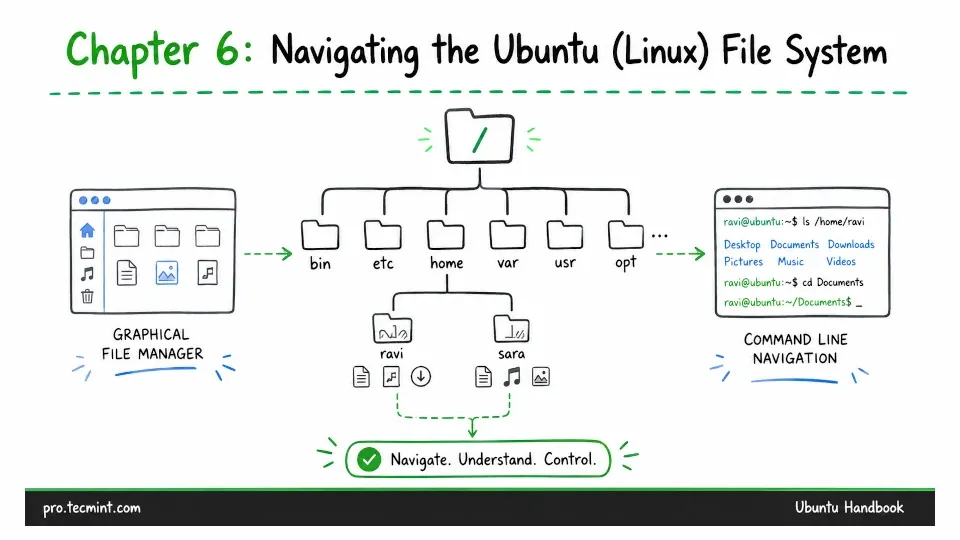
In the last chapter, we looked at the GNOME desktop environment and learned how to move around Ubuntu’s interface, use the Activities view, manage your work with workspaces, and customize your desktop's look.
Now it’s time to peek behind the desktop interface and see what’s really going on underneath. Every file, folder, program, and system component has its own place on your computer, arranged in a specific structure.
If you’re used to Windows or macOS, the Linux file system might feel a bit unfamiliar at first, but once you get how it’s organized, you’ll see that it’s surprisingly logical and consistent.
In this chapter, we’ll explore the Linux file system from two angles: through the easy-to-use graphical file manager and the more powerful, hands-on command line.
Here’s what we’ll cover:
- Understanding the Linux file system hierarchy, where everything lives, and why it’s organized that way.
- Using the Files application, your graphical file manager for everyday tasks.
- Mastering the command line, navigating directories with confidence.
- Essential file operations, copying, moving, creating, and deleting files.
- Working with hidden files and permissions, knowing what you can and can’t access.
Whether you prefer graphical or commandline, by the end of this chapter, you'll feel comfortable managing files and folders in Ubuntu.
Understanding the Linux File System Structure
One of the first things you'll notice about Linux is that it doesn't have drive letters like Windows (C:, D:, E:). Instead, everything starts from a single point called the root directory, represented by a forward slash /.
Think of it like an upside-down tree: the root is at the top, and everything branches out from there.
The Root Directory and Its Children
When you open the file system at the root level, you'll see several directories with cryptic names like /bin, /etc, /home, and /usr. These aren't random - each serves a specific purpose in organizing your system.

Let's explore the most important ones:
- /root - Home directory for the root (administrator) user; separate from
/homeand not the same as/. - /bin - Contains essential command-line programs like
ls,cp, andmv. - /usr - Holds user programs and applications, with subfolders like
/usr/binfor binaries and/usr/sharefor shared data. - /etc - Stores system-wide configuration files for programs and services.
- /var - Contains variable data such as logs, cache, and temporary files.
- /tmp - Temporary storage cleared on reboot; used for short-term files.
- /opt - Used for optional or third-party software outside the standard structure.
- /boot - Holds files required to start the system, including the Linux kernel.
- /dev - Represents hardware devices as files (e.g.,
/dev/sdafor drives,/dev/video0for webcams). - /media - Where removable devices like USB drives or DVDs are automatically mounted.
- /mnt - Traditionally used for manually mounted file systems; less common now than
/media.
/home because that's where you'll spend most of your time.Your Home Directory: Your Personal Space
Your home directory is your personal workspace where all your documents, pictures, downloads, and settings live.
When you open the Files application, it automatically starts in your home directory, where you'll find several standard folders:
- Desktop: Contents appear on your desktop (if you've enabled desktop icons)
- Documents: For storing documents, spreadsheets, and text files
- Downloads: Default location for files you download from the web
- Music: Organized storage for your music collection
- Pictures: For photos and images
- Videos: For video files and recordings
- Public: Files you want to share with other users on the same computer
- Templates: Store template files here to quickly create new documents
You can access your home directory in several ways:
- In the Files app, click "Home" in the sidebar.
- In the terminal, type
cd ~or justcd - The path shortcut
~always refers to your home directory.

Understanding Paths
A path is simply the address of a file or folder on your system, and there are two types of paths:
Absolute paths start from the root directory and give the complete location:
/home/ravi/Documents/report.pdf
Relative paths start from your current location. If you're already in /home/ravi/, you could refer to the same file as:
Documents/report.pdf
The path separator in Linux is a forward slash /, not a backslash like Windows. This is important to remember if you're coming from Windows.
Hidden Files and Folders
In Linux, any file or folder that starts with a dot . is considered hidden, which are typically configuration files and folders that you don't need to see during everyday use.
For example:
.bashrc- Configuration for your terminal shell..config- Folder containing application settings..mozilla- Firefox browser data and settings.
To see hidden files in the Files application, press Ctrl + H or go to the menu (three horizontal lines) and enable "Show Hidden Files".
In the terminal, use ls -a to list all files, including hidden ones.
