Lesson 75: yum Command
In this lesson, you'll learn how to use the yum command to install, update, remove, and manage software packages on RPM-based Linux distributions.
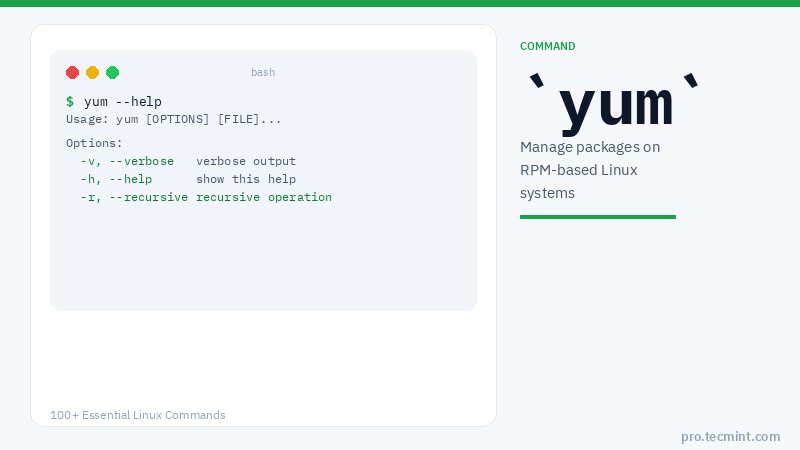
YUM (Yellowdog Updater Modified) is an open-source command-line as well as graphical-based package management tool for RPM (RedHat Package Manager) based Linux systems.
It allows users and system administrators to easily install, update, remove, or search software packages on a system.
It was developed and released by Seth Vidal under GPL (General Public License) as an open-source project, which means anyone can download and access the code to fix bugs and develop customized packages.
YUM uses numerous third-party repositories to install packages automatically by resolving their dependency issues.
Update: The yum command is replaced by the dnf command, which is a next-generation version of YUM and considered to be the replacement for YUM in most newer RPM-based distributions.
yum Command Syntax
# yum [OPTIONS] [COMMAND] [PACKAGE]
yum Command Options
| Command | Description |
|---|---|
install |
Install a package along with its dependencies |
remove |
Remove a package and its dependencies |
update |
Update a specific package or all packages |
list |
List available or installed packages |
search |
Search for a package by keyword |
info |
Display information about a package |
check-update |
Check for available updates |
grouplist |
List available package groups |
groupinstall |
Install a package group |
groupupdate |
Update a package group |
groupremove |
Remove a package group |
repolist |
List enabled repositories |
provides |
Find which package a file belongs to |
shell |
Launch the interactive YUM shell |
clean all |
Clean all cached YUM data |
history |
View past YUM transactions |
-y |
Automatically answer yes to all prompts |
1. Install a Package with yum
To install a package called firefox, just run the below command — it will automatically find and install all required dependencies for Firefox.
# yum install firefox
Last metadata expiration check: 0:01:07 ago on Sun 01 Oct 2023 07:37:12 PM EDT.
Dependencies resolved.
========================================================================
 Package               Arch       Version             Repository   Size
========================================================================
Installing:
 firefox               x86_64     118.0-1.fc38        updates      64 M
Installing weak dependencies:
 firefox-langpacks     x86_64     118.0-1.fc38        updates      43 M

Transaction Summary
========================================================================
Install  2 Packages

Total download size: 106 M
Installed size: 252 M
Is this ok [y/N]: y
Downloading Packages:
(1/2): firefox-langpacks-118.0-1.fc38.x 494 kB/s |  43 MB     01:28
(2/2): firefox-118.0-1.fc38.x86_64.rpm  650 kB/s |  64 MB     01:40
------------------------------------------------------------------------
Total                                   1.0 MB/s | 106 MB     01:41
Running transaction check
Transaction check succeeded.
Running transaction test
Transaction test succeeded.
Running transaction
  Running scriptlet: firefox-118.0-1.fc38.x86_64                    1/1
  Preparing        :                                                1/1
  Installing       : firefox-langpacks-118.0-1.fc38.x86_64          1/2
  Installing       : firefox-118.0-1.fc38.x86_64                    2/2
  Running scriptlet: firefox-118.0-1.fc38.x86_64                    2/2
  Verifying        : firefox-118.0-1.fc38.x86_64                    1/2
  Verifying        : firefox-langpacks-118.0-1.fc38.x86_64          2/2

Installed:
  firefox-118.0-1.fc38.x86_64   firefox-langpacks-118.0-1.fc38.x86_64

Complete!
The above command will ask for confirmation before installing any package on your system.
If you want to install packages automatically without asking for any confirmation, use the -y option as shown below.