Lesson 78: ping Command
In this lesson, you'll learn how to use the ping command to test network connectivity and measure round-trip time to a host in Linux.
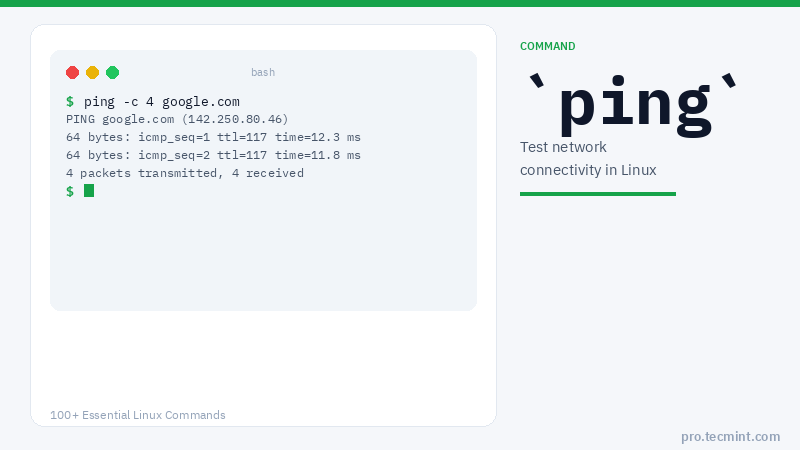
ping is a simple, widely used, cross-platform networking utility for testing if a host is reachable on an Internet Protocol (IP) network.
It works by sending a series of Internet Control Message Protocol (ICMP) ECHO_REQUEST messages to the target host and waiting for an ICMP echo reply (or ECHO_RESPONSE).
You can run a ping test in order to establish if your computer can communicate with another computer (target host). It helps you determine:
- Whether the target host is reachable (active) or not.
- The amount of time it takes for packets to get to the target host and back to your computer (the round-trip time (rtt) in communicating with the target host).
- The packet loss expressed as a percentage.
Its output is a list of replies from the target host along with the time taken for the last packet to reach the target host and back to your computer.
It also shows a statistical summary of the test, typically including the number of packets transmitted and those received, the percentage of packet loss, the minimum, maximum, the mean round-trip times, and the standard deviation of the mean (mdev).
In case a ping test fails, you will see error messages as output.
Let's discuss some practical ping command examples for testing the reachability of a host on a network.
ping Command Syntax
$ ping [OPTIONS] HOST
ping Command Options
| Option | Description |
|---|---|
-c N |
Stop after sending N ECHO_REQUEST packets |
-i N |
Set interval in seconds between sending each packet (default: 1 second) |
-f |
Flood ping - send requests as fast as possible |
-b |
Allow pinging a broadcast address |
-t N |
Set the Time-to-live (TTL) value for packets |
-s N |
Set the size of the packet payload in bytes |
-l N |
Send N packets without waiting for a reply (preload) |
-W N |
Set the time to wait for a response in seconds |
-w N |
Set a deadline in seconds before ping exits |
-d |
Enable debug IP packet detail |
-v |
Enable verbose output |
1. Ping a Domain or IP Address
You can run a simple ping test to see whether the target host www.google.com is reachable or not. You can also use an IP address instead of the domain name as shown.
$ ping www.google.com
Or:
$ ping 142.250.201.132
PING www.google.com (142.250.201.132) 56(84) bytes of data.
64 bytes from mct01s21-in-f4.1e100.net (142.250.201.132): icmp_seq=1 ttl=128 time=96.9 ms
64 bytes from mct01s21-in-f4.1e100.net (142.250.201.132): icmp_seq=2 ttl=128 time=147 ms
64 bytes from mct01s21-in-f4.1e100.net (142.250.201.132): icmp_seq=3 ttl=128 time=76.3 ms
64 bytes from mct01s21-in-f4.1e100.net (142.250.201.132): icmp_seq=4 ttl=128 time=136 ms
64 bytes from mct01s21-in-f4.1e100.net (142.250.201.132): icmp_seq=5 ttl=128 time=124 ms
^C
--- www.google.com ping statistics ---
5 packets transmitted, 5 received, 0% packet loss, time 4009ms
rtt min/avg/max/mdev = 76.263/116.102/147.374/26.071 ms