Lesson 72: apt Command
In this lesson, you'll learn how to use the apt command to install, update, remove, and manage software packages in Debian-based Linux distributions.
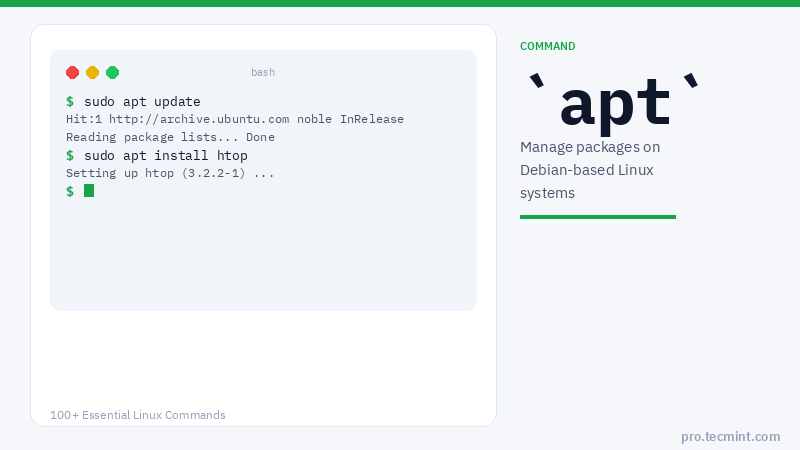
The apt (Advanced Package Tool) is a command-line-based package management tool that simplifies the management of package installation, upgrades, and removal in Debian-based Linux distributions, including Ubuntu, Linux Mint, and others.
Package Management Tools
Different Linux distributions install applications in a pre-compiled package containing binary files, configuration files, and information about the application's dependencies.
Package management tools play a pivotal role in simplifying the tasks of System and Server Administrators in many ways, such as:
- Downloading and installing software.
- Compiling software from source.
- Keeping track of all software installed, updates, and upgrades.
- Handling dependencies.
- Keeping other information about installed software and more.
Now, let's explore some examples of the apt command to better understand its usage.
However, before we delve into its examples, it's important to know that the apt command combines more functionalities than the older apt-get and apt-cache commands into a single, powerful tool.
apt Command Syntax
$ sudo apt [COMMAND] [PACKAGE]
apt Command Options
| Command | Description |
|---|---|
install |
Install a package along with its dependencies |
remove |
Remove a package but keep its configuration files |
purge |
Remove a package and its configuration files |
update |
Download updated package lists from repositories |
upgrade |
Upgrade all installed packages to their latest versions |
autoremove |
Remove unused packages that are no longer needed |
autoclean |
Remove old package files from the local cache |
clean |
Remove all files from the local package cache |
search |
Search for packages in the repositories by keyword |
show |
Display detailed information about a specific package |
depends |
Display the dependencies of a specific package |
content |
Display files installed by a specific package |
check |
Check for broken package dependencies |
version |
Check the installed version of a package |
deb |
Install a local .deb package file |
help |
Display help information for apt commands |
1. Install a Package
To install a package named glances, use the apt install command that will install the package along with the required dependencies in your Linux system:
$ sudo apt install glances
Reading package lists... Done
Building dependency tree... Done
The following additional packages will be installed:
  python3-glances python3-psutil
The following NEW packages will be installed:
  glances python3-glances python3-psutil
0 upgraded, 3 newly installed, 0 to remove and 0 not upgraded.
Do you want to continue? [Y/n] y