Lesson 38: top Command
In this lesson, you'll learn how to use the top command to monitor running processes and system resource usage in real time in Linux.
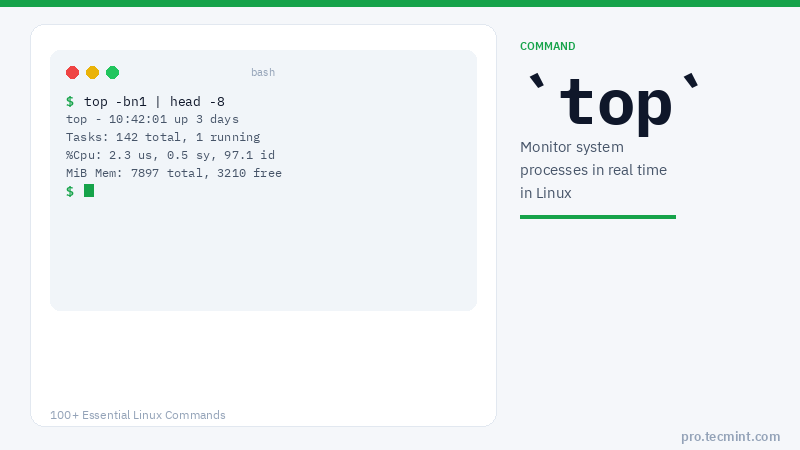
The top command is one of the most frequently used commands in our daily system administrative jobs.
The top command (table of processes) displays the processor activity of your Linux box and also displays tasks managed by the kernel in real-time.
It also shows information about CPU and memory utilization of a list of running processes.
top Command Syntax
# top [OPTIONS]
top Command Options
| Option/Key | Description |
|---|---|
-u USER |
Display processes for a specific user |
-n N |
Exit after N repetitions |
-b |
Run in batch mode (useful for saving output to a file) |
q |
Quit the top window |
M + P |
Sort processes by memory usage |
M + T |
Sort processes by running time |
Shift+P |
Sort processes by CPU utilization |
z |
Highlight running processes in color |
c |
Display the absolute path of running processes |
d |
Change the screen refresh interval |
k |
Kill a running process by PID |
r |
Renice (change the priority of) a process |
1 |
Display load information for each CPU core |
i |
List idle/sleeping processes |
h |
Display help |
1. List All Running Linux Processes
To list all running Linux processes, simply type top on the command line to get the information on running tasks, memory, CPU, and swap. Press "q" to quit the window.
# top
top - 11:42:01 up 3 days,  2:15,  2 users,  load average: 0.12, 0.08, 0.05
Tasks: 142 total,   1 running, 141 sleeping,   0 stopped,   0 zombie
%Cpu(s):  2.3 us,  0.5 sy,  0.0 ni, 97.1 id,  0.0 wa,  0.0 hi,  0.1 si
MiB Mem:   7897.0 total,   3210.4 free,   2148.2 used,   2538.4 buff/cache
MiB Swap:  2048.0 total,   2048.0 free,      0.0 used.   5430.0 avail Mem

  PID USER      PR  NI    VIRT    RES    SHR S  %CPU  %MEM     TIME+ COMMAND
    1 root      20   0  168940  13024   9216 S   0.0   0.2   0:01.23 systemd
  823 root      20   0   55680   2048   1536 S   0.0   0.0   0:00.12 sshd
  921 tecmint   20   0   23456   5120   3840 S   0.1   0.1   0:00.45 bash
2. Sort Linux Processes by PID
To sort all Linux running processes by Process ID, press the "M" and "T" keys.
# top
Then press M then T to sort by PID within the interactive top display.