Lesson 20: tar Command
In this lesson, you'll learn how to use the tar command to create and manage archive files in Linux.
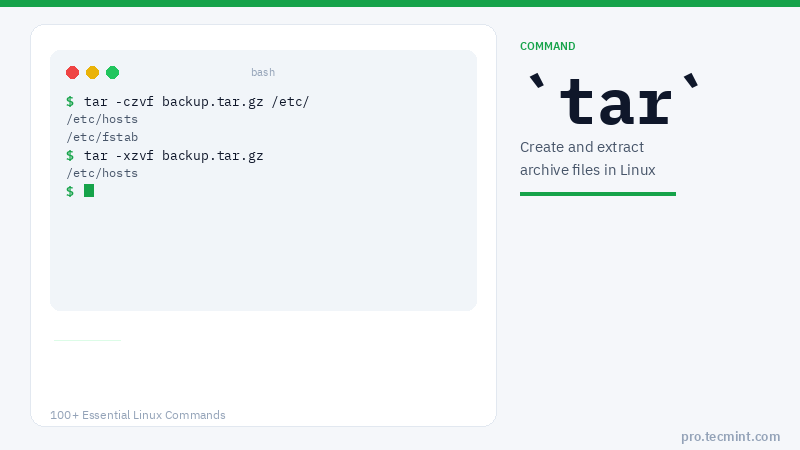
The Linux tar stands for tape archive, which is used by a large number of Linux/Unix system administrators to deal with tape drive backup in Linux.
The tar command in Linux is used to rip a collection of files and directories into a highly compressed archive file commonly called a tarball or tar, gzip, and bzip in Linux.
The tar is the most widely used command to create compressed archive files that can be moved easily from one disk to another or from one machine to another.
Let's now discuss various tar command examples, including how to create archive files using (tar, tar.gz, and tar.bz2) compression, how to extract archive files, extract a single file, view the content of the file, verify a file, add files or directories to an existing archive file, estimate the size of a tar archive file, etc.
tar Command Syntax
tar [OPTIONS] [ARCHIVE_FILE] [FILE/DIRECTORY]
tar Command Options
| Option | Description |
|---|---|
-c |
Create a new archive file |
-x |
Extract an archive file |
-v |
Show the progress of the archive file |
-f |
Specify the filename of the archive file |
-t |
View the content of an archive file |
-u |
Archive and add to an existing archive file |
-j |
Filter the archive through bzip2 |
-z |
Filter the archive through gzip |
-r |
Append or update files or directories to an existing archive file |
-W |
Verify an archive file |
-C |
Extract files to a specified directory |
-A |
Concatenate archive files |
--wildcards |
Specify patterns in the Unix tar command |
--exclude |
Exclude files and directories when creating the archive |
--delete |
Remove a file or directory from the archive |
1. Create a tar File in Linux
The following example of the tar command will create a tar archive file tecmint-30-09-23.tar for the directory /home/ubuntu/Documents/ in the current working directory.
$ tar -cvf tecmint-30-09-23.tar /home/ubuntu/Documents/
tar: Removing leading `/' from member names
/home/ubuntu/Documents/
/home/ubuntu/Documents/FiraCode.zip
/home/ubuntu/Documents/phpmyadmin-2.11.11.3-1.el5.rf.noarch.rpm
/home/ubuntu/Documents/openvpn-2.1.4.tar.gz
/home/ubuntu/Documents/tecmint-30-09-23.tar
/home/ubuntu/Documents/cleanfiles.sh
/home/ubuntu/Documents/rpmforge-release-0.5.2-2.el5.rf.i386.rpm
Let's discuss each option used in the above tar command to create a tar archive file:
-c- Creates a new.tararchive file.-v- Verbosely shows the.tarfile progress.-f- Filename type of the archive file.
2. Create a tar.gz File in Linux
To create a compressed gzip archive file, we use the option z. For example, the below command will create a compressed MyImages-30-09-23.tar.gz file for the directory /home/MyImages. (Note: tar.gz and tgz are both similar).
# tar cvzf MyImages-30-09-23.tar.gz /home/MyImages
Or:
# tar cvzf MyImages-30-09-23.tgz /home/MyImages
/home/MyImages/
/home/MyImages/Sara-Khan-and-model-Priyanka-Shah.jpg
/home/MyImages/RobertKristenviolent101201.jpg
/home/MyImages/Justintimerlake101125.jpg
/home/MyImages/Mileyphoto101203.jpg
/home/MyImages/JenniferRobert101130.jpg
/home/MyImages/katrinabarbiedoll231110.jpg
/home/MyImages/the-japanese-wife-press-conference.jpg
/home/MyImages/ReesewitherspoonCIA101202.jpg
/home/MyImages/yanaguptabaresf231110.jpg