Lesson 52: shred Command
In this lesson, you'll learn how to use the shred command to securely overwrite and delete files in Linux.
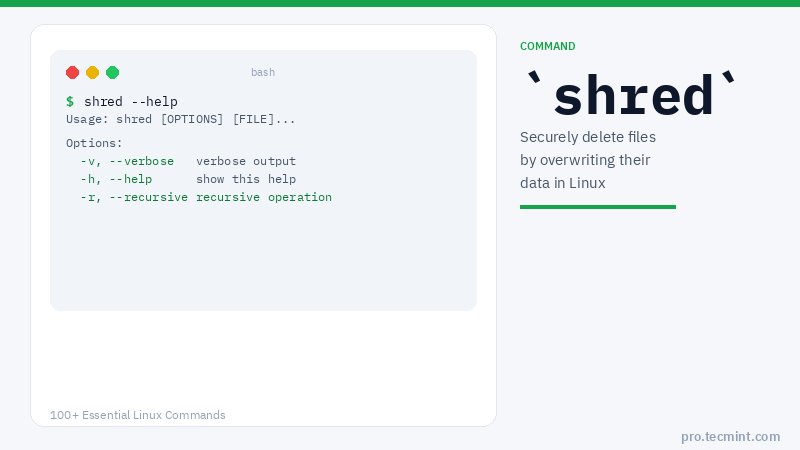
The shred command overwrites a file to hide its contents, and can optionally delete it as well.
shred Command Syntax
$ shred [OPTIONS] FILE
shred Command Options
| Option | Description |
|---|---|
-z |
Add a final overwrite with zeros to hide shredding |
-v |
Enable display of operation progress |
-u |
Truncate and remove the file after overwriting |
-n N |
Specify the number of times to overwrite file content (default is 3) |
1. Securely Overwrite and Delete a File
The following command securely overwrites and deletes a file called passwords.list with 5 passes of random data followed by a final zero overwrite.
$ shred -zvu -n 5 passwords.list
shred: passwords.list: pass 1/6 (random)...
shred: passwords.list: pass 2/6 (random)...
shred: passwords.list: pass 3/6 (random)...
shred: passwords.list: pass 4/6 (random)...
shred: passwords.list: pass 5/6 (random)...
shred: passwords.list: pass 6/6 (000000)...
shred: passwords.list: removing
shred: passwords.list: renamed to 00000000000000
shred: 00000000000000: renamed to 0000000000000
shred: 0000000000000: removed
In the command above, the options used are: