Lesson 46: lsblk Command
In this lesson, you'll learn how to use the lsblk command to list block devices on your Linux system.
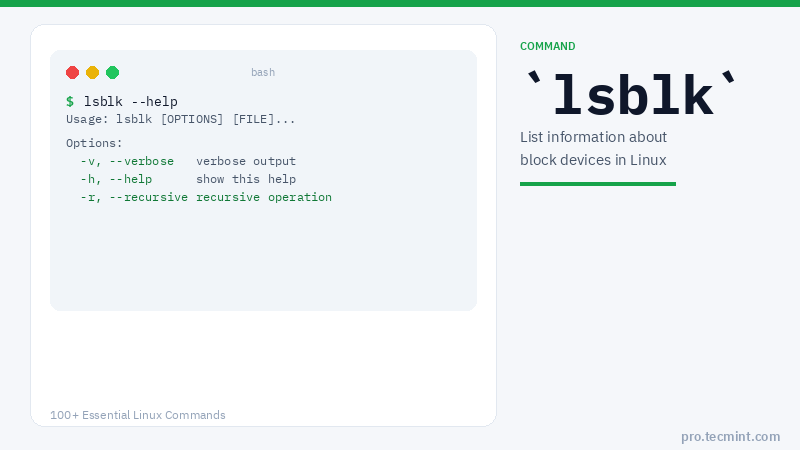
"lsblk" stands for List Block Devices. It prints block devices by their assigned name (but not RAM) on the standard output in a tree-like fashion.
lsblk Command Syntax
# lsblk [OPTIONS] [DEVICE]
lsblk Command Options
| Option | Description |
|---|---|
-l |
Display block devices in a flat list structure instead of tree-like fashion |
-a |
List all block devices including empty ones |
-f |
Display filesystem information (UUID, type, label, mount point) |
-m |
Display permission information |
-o COLUMNS |
Specify which columns to display |
-p |
Print full device paths |
-t |
Print topology information |
1. List Block Devices in Tree Format
The default lsblk command prints all block devices in a tree-like format, showing the disk and its partitions in a hierarchy.
root@TecMint:~# lsblk
NAME   MAJ:MIN RM   SIZE RO TYPE MOUNTPOINT
sda      8:0    0 232.9G  0 disk
├─sda1   8:1    0  46.6G  0 part /
├─sda2   8:2    0     1K  0 part
├─sda5   8:5    0   190M  0 part /boot
├─sda6   8:6    0   3.7G  0 part [SWAP]
├─sda7   8:7    0  93.1G  0 part /data
└─sda8   8:8    0  89.2G  0 part /personal
sr0     11:0    1  1024M  0 rom