Lesson 12: less Command
In this lesson, you'll learn how to use the less command to view and navigate through file contents in Linux.
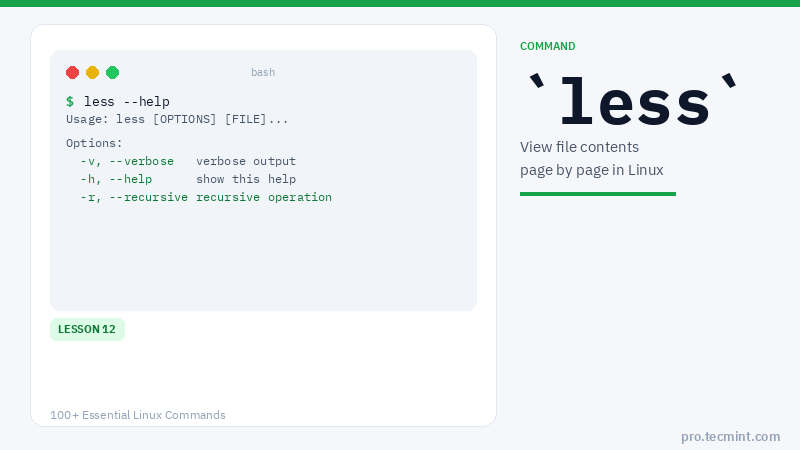
The less command allows you to view the contents of a file and navigate through the file. It does not load the entire file at once and allows navigation through the file using page up/down keys.
It can be used as a standalone command issued against a file or used with pipes with a multitude of Linux commands in order to narrow their screen output, allowing you to scroll through results.
less Command Syntax
less [OPTIONS] FILE
less Command Options
| Option | Description |
|---|---|
-N |
Show line numbers for every line in the file |
-e |
Automatically exit when the end of the file is reached |
-E |
Automatically exit at the end of the file (uppercase) |
+N |
Open the file starting at line number N |
+/pattern |
Open the file at the first occurrence of a pattern |
+F |
Continuously follow new content appended to the file |
1. View File Contents with less
Use the less command to view the contents of a file or pipe command output through it for scrollable results.
# less /var/log/auth.log
# ls /etc | less
You can navigate through the file line by line by pressing the Enter key. Page navigation can be handled with the Spacebar key.
The page size is represented by your current terminal screen size. To exit the command, type the q key.
A useful feature of the less command is the use of the /word-to-search option.
For instance, you can search and match all sshd messages from a log file by interactively specifying the /sshd string.
2. Open a File at a Specific Line Number
To display a file starting at a specific line number, use the following syntax:
# less +5 /var/log/auth.log