Chapter 6: Centralized SSH Key Management with authorized_keys
In this chapter, you'll learn how to manage SSH keys for a team, install authorized_keys files from a central source of truth, restrict an automation key, rotate SSH keys, and fix common permission errors.
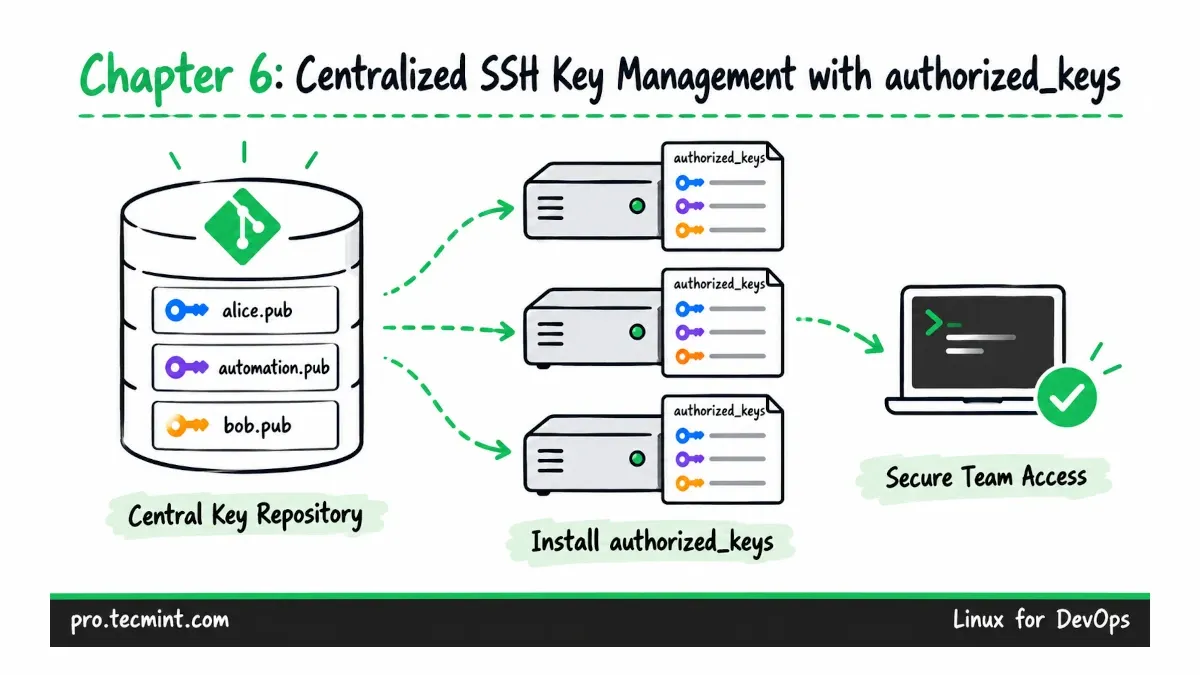
When every engineer adds their own SSH keys to servers manually, it quickly becomes difficult to know who still has access.
In this chapter, we'll manage the team's public keys from one central location, install them consistently across every server with a script, restrict the automation key, and replace a lost key when needed.
What You'll Learn
- Understand why a team should manage
authorized_keyscentrally instead of allowing each user to runssh-copy-idindependently. - Keep one public key file per user on the admin machine so there is a clear record of who should have access.
- Install each user's
authorized_keysfile on every server with a script, including the correct permissions and SELinux labels required bysshd. - Restrict the
deploykey withrestrictandfrom=, then use it to run the Chapter 1 health checks remotely withsudo -n. - Rotate a lost SSH key and troubleshoot permission problems that can cause
Permission denied (publickey).
Where We Left Off
In Chapter 5, we configured sudo access for each role so users can run only the administrative commands they need.
At this point, Anita and Vikram can log in to the servers, but they are still using passwords. The deploy account cannot log in over SSH at all because it does not have a password or an SSH key.
In this chapter, we'll give each account an SSH key and manage those keys centrally.