2. Linux Mint 22
In this chapter, we guide you through downloading the Linux Mint 22.3 “Zena” Cinnamon Edition ISO, preparing a bootable USB, installing the system, and personalizing your setup for daily use.
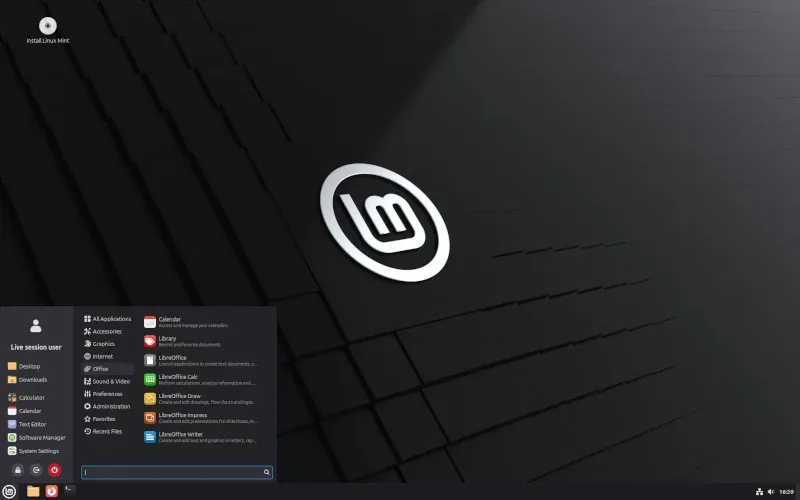
If Ubuntu feels like the “standard” Linux distribution, then Linux Mint is its friendly, more familiar cousin. Built on top of Ubuntu, Mint takes everything great about it and adds a polished, Windows-like experience that’s especially inviting for newcomers.
Where Ubuntu introduced you to the GNOME desktop, Linux Mint uses Cinnamon (its default edition), which looks and feels closer to the Windows layout you might already know, with a taskbar, start-menu style launcher, and system tray.
In this chapter, you’ll learn how to install Linux Mint, update your system, install drivers, and customize the desktop so it feels like home.
We’ll start with a quick overview of Mint’s key features, including its Cinnamon desktop, which gives you a clean, classic layout.
Then, we’ll go step by step through downloading the ISO file, creating a bootable USB drive, and installing Mint on your computer.
Once installed, we’ll cover system updates, software management through the Software Manager, and how to enable additional drivers if needed.
On top of that, we’ll explore some simple tweaks and customization tips to make your Linux Mint setup truly yours.
 Mead Naji