Chapter 6: Your First SSH Connection
In this Chapter 6, learn how to make your first SSH connection, understand host key verification, manage the known_hosts file, and follow the complete SSH session lifecycle from start to finish.
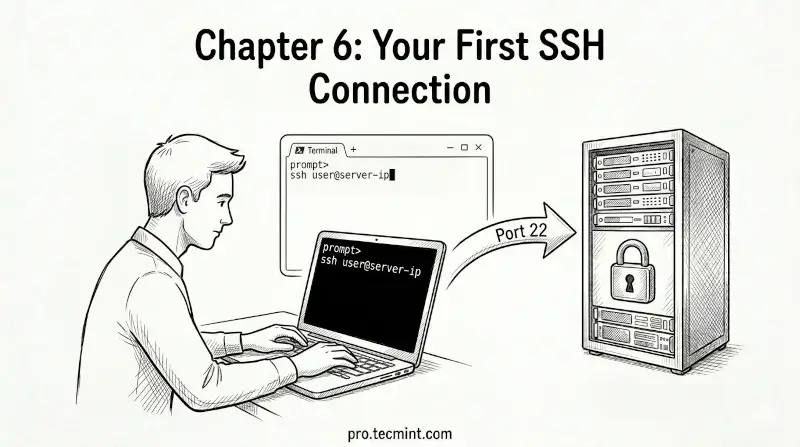
In the previous chapter, you learned how to get SSH installed and ready on Windows. By now, you have SSH set up on your machine regardless of your operating system. It is time to use it.
In this chapter, you will make your very first SSH connection to a remote server. You will learn the exact command syntax, understand what happens when you connect for the first time, and learn how SSH verifies and remembers servers using the known_hosts file.
The Basic SSH Command
The syntax for connecting to a remote server with SSH is straightforward:
ssh user@hostname
Where:
- user - the username you want to log in as on the remote server.
- hostname - the IP address or domain name of the remote server.
For example, to connect to a server with IP 192.168.1.100 as the user ravi:
ssh [email protected]
Or using a domain name:
ssh [email protected]
By default, SSH connects on port 22. If your server runs SSH on a different port, use the -p flag to specify it:
ssh -p 2222 [email protected]