Chapter #8: Managing Users, Groups, Permissions, and PAM Security
In this chapter, you’ll learn the essentials of user account creation, group-based access control, sudo privilege assignment, and securing Linux with PAM and special file permissions.

Since Linux is a multi-user operating system (in that it allows multiple users on different computers or terminals to access a single system), you will need to know how to perform effective user management: how to add, edit, suspend, or delete user accounts, along with granting them the necessary permissions to do their assigned tasks.
Adding User Accounts
To add a new user account, you can run either of the following two commands as root:
adduser [new_account]
useradd [new_account]
adduser is a more user-friendly wrapper around useradd and is often a symbolic link to it, depending on the distribution. On Debian-based systems, adduser is a separate Perl script that adds extra prompts and configurations.What Happens When You Add a User
When a new user account is added to the system, the following operations are performed:
- His/her home directory is created (
/home/usernameby default). - The following hidden files are copied into the user’s home directory, and will be used to provide environment variables for his/her user session.
.bash_logout
.bash_profile
.bashrc
- A mail spool is created for the user.
- A group is created and given the same name as the new user account.
useradd does not create a home directory unless the -m option is explicitly provided. Check /etc/login.defs for default settings like CREATE_HOME.Understanding /etc/passwd File
The full account information is stored in the /etc/passwd file. This file contains a record per system user account and has the following format (fields are delimited by a colon):
[username]:[x]:[UID]:[GID]:[Comment]:[Home directory]:[Default shell]
- Fields
[username]and[Comment]are self-explanatory. - The
xin the second field indicates that the account is protected by a shadowed password (in/etc/shadow), which is needed to log on as[username]. - The
[UID]and[GID]fields are integers that represent the User IDentification and the primary Group IDentification to which[username]belongs, respectively. - The
[Home directory]indicates the absolute path to[username]’s home directory. [Default shell]is the shell that will be made available to this user when he or she logs into the system.
Understanding /etc/group File
Group information is stored in the /etc/group file. Each record has the following format:
[Group name]:[Group password]:[GID]:[Group members]
Where:
[Group name]is the name of the group.- An
xin[Group password]indicates group passwords are not being used. [GID]: same as in/etc/passwd.[Group members]: a comma-separated list of users who are members of[Group name].

After adding an account, you can edit the following information (to name a few fields) using the usermod command, whose basic syntax is as follows:
usermod [options] [username]
- To set the expiry date for an account, use the
--expiredateflag followed by a date inYYYY-MM-DDformat. - To add the user to supplementary groups, use the combined
-aG, or--append --groupsoptions, followed by a comma-separated list of groups. - To change the default location of the user’s home directory, use the
-d, or--homeoptions, followed by the absolute path to the new home directory. - To change the shell the user will use by default, use
--shell, followed by the path to the new shell. - To view the groups a user is a member of, do:
groups [username]
id [username]
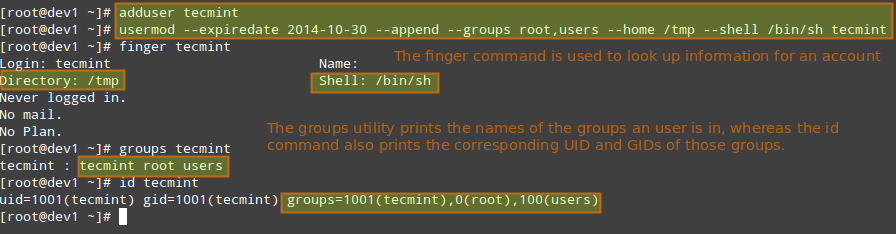
Modify an Existing Account
In the example above, we will set the expiry date of the tecmint user account to October 30th, 2014. We will also add the account to the root and users group.
Finally, we will set sh as its default shell and change the location of the home directory to /tmp: