Lesson 4: clear Command
Beginner’s guide to clearing your Linux terminal screen using commands and keyboard shortcuts with clear explanations.

When working in a Linux terminal, your screen can quickly become cluttered with commands and output. To help keep things tidy, Linux provides several ways to clear the terminal screen.
In this section, we’ll explore the most commonly used method - the clear command along with a few other useful tricks to reset your terminal view.
Let’s break it down with clear explanations and examples.
1. Clear the Terminal Screen Using the clear Command
The clear command is the simplest way to wipe your terminal screen clean. It removes all visible text and scrolls the prompt to the top of the screen, which is especially useful after running multiple commands or viewing long output.
First, run a couple of commands in your terminal:
echo "Hello, World!"
cat /etc/os-release
Now, to clean up the screen, just execute the clear command without any arguments:
clear
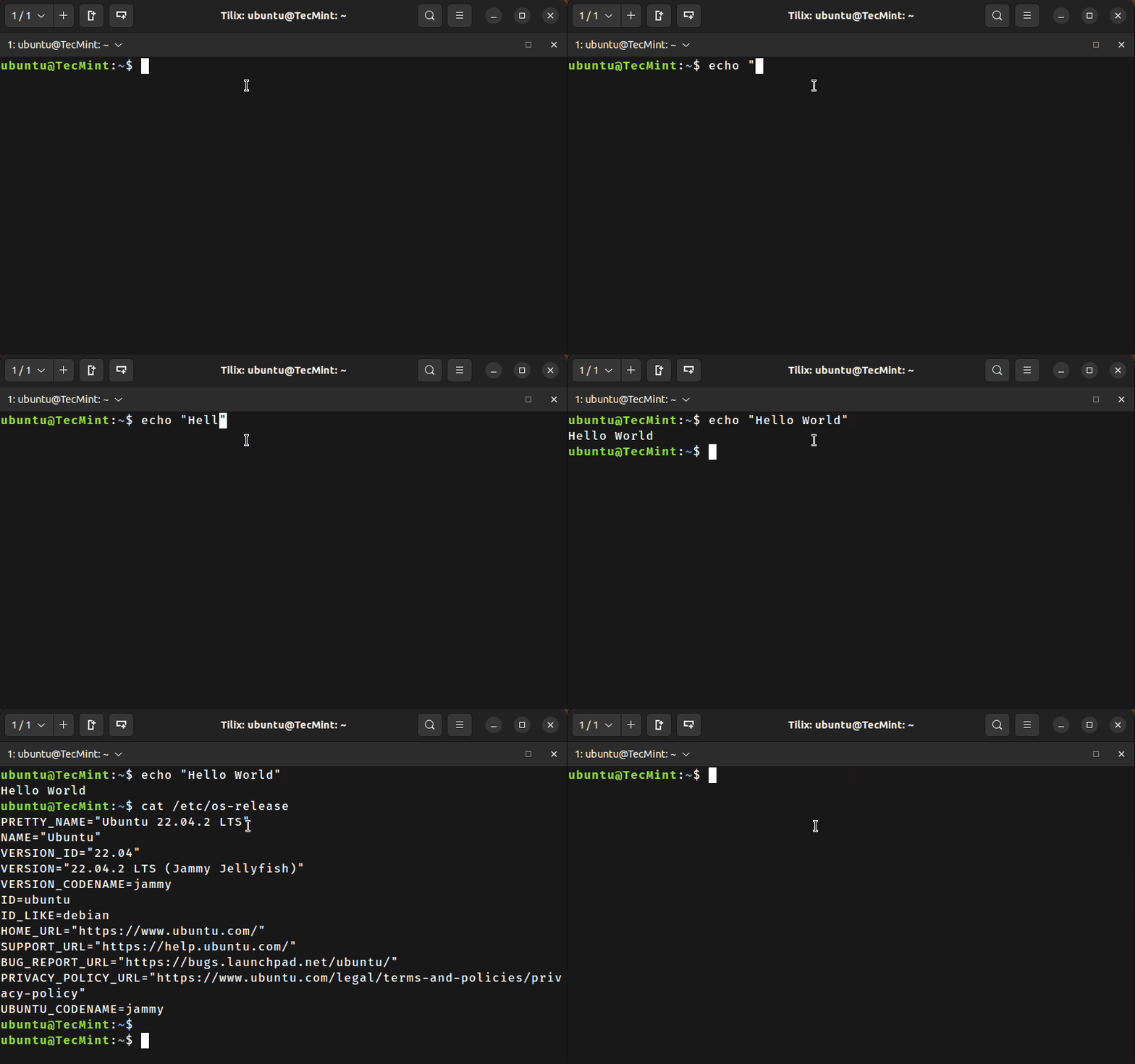
clear command also clears the scroll-back buffer in most terminal emulators, meaning you won’t be able to scroll up and see earlier output.2. Use Ctrl+L to Clear the Screen Quickly
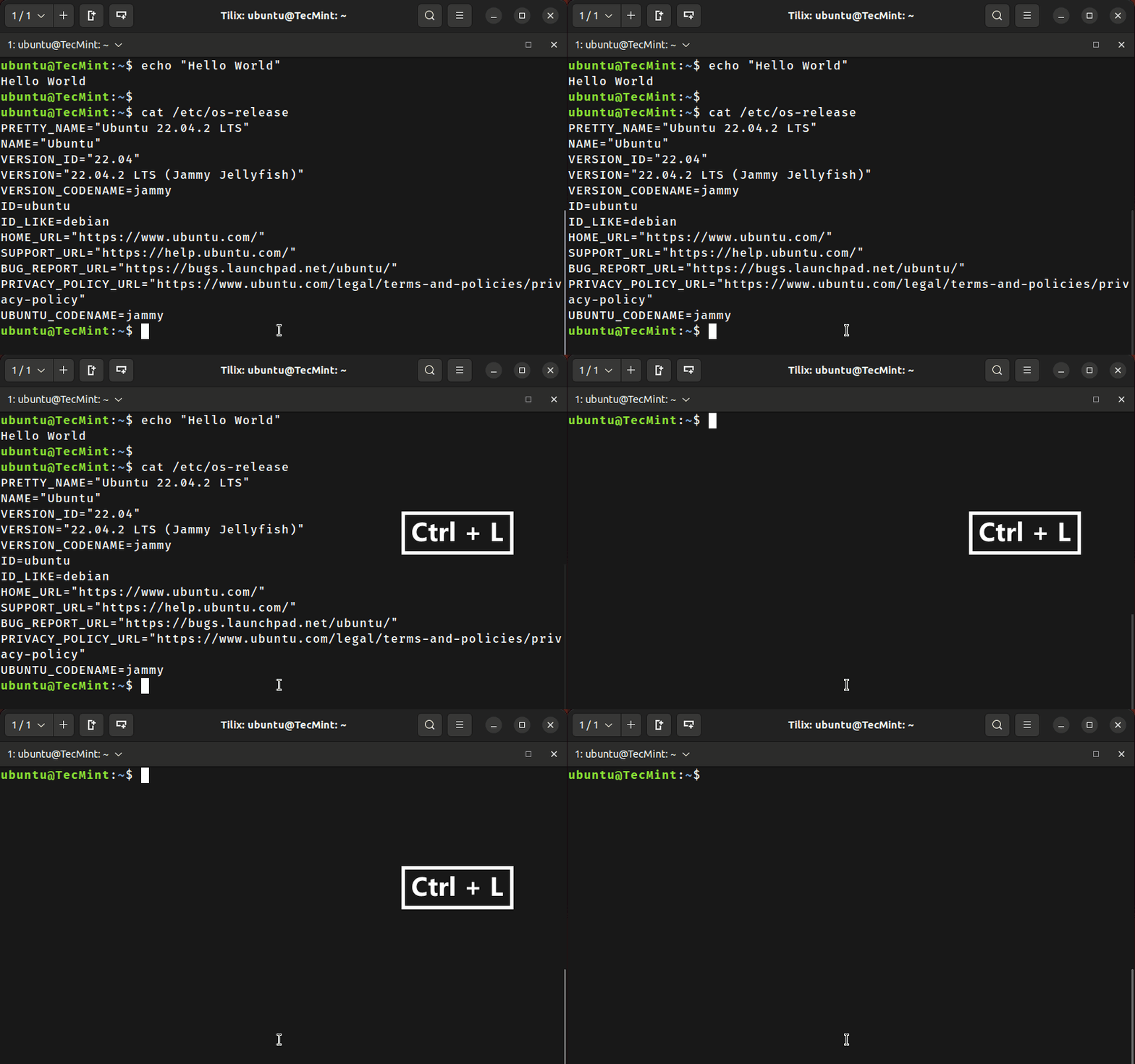
In addition to the clear command, you can use a keyboard shortcut: Ctrl + L. This method is quick and easy when you want a cleaner view.
Try this:
- Run a few commands again to fill the terminal.
- Press
Ctrl + L.
You’ll notice the screen is cleared, but unlike clear, this method doesn’t clear the scroll-back buffer. You can still scroll up and view previous output.
3. Reset the Terminal with the reset Command
Sometimes the terminal might behave strangely due to misconfigured output or corrupted display. In such cases, you can use the reset command, which reinitializes the terminal completely.
The reset command reinitializes the terminal, hence, it takes more time compared to the clear command.
reset
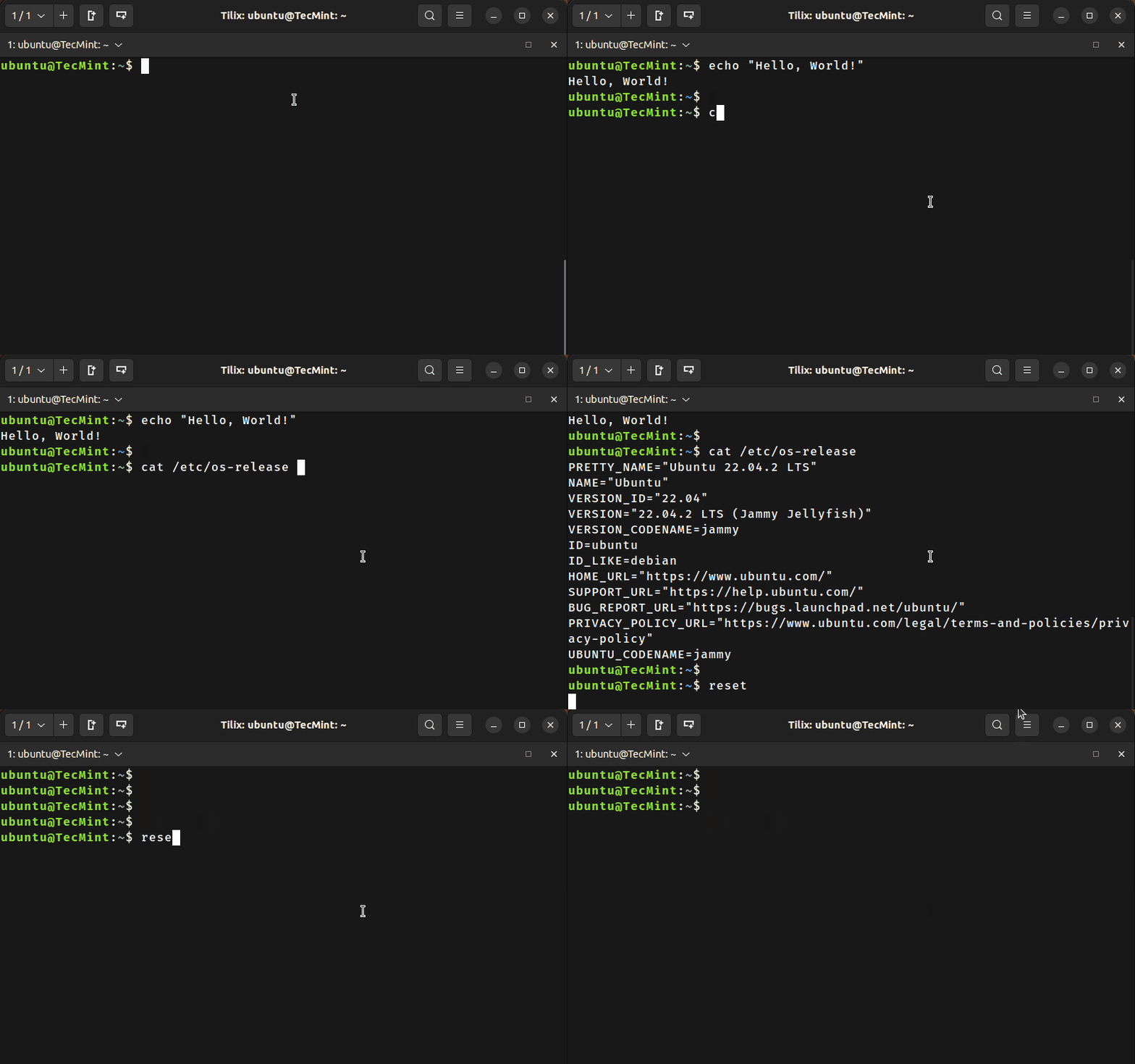
reset command also clears the scroll-back buffer, just like clear. However, it takes slightly longer to execute because it resets the terminal state completely.