Setting Up Duplicati for Full-Stack Backups: Databases + Web Files on Linux
We'll install Duplicati on Linux, backup your MySQL database and WordPress files, then send encrypted backups to local storage, SFTP servers, and AWS S3.
If you're running a WordPress site (or any web application) in production, backups are essential. If something goes wrong, such as a hardware failure, accidental deletion, or ransomware attack, it could wipe out everything you've built.
However, manual backups are tedious and easy to forget, but here's the challenge: manual backups are tedious, and they're easy to forget. Miss a few days, and you've created a risky gap in your backup history.
Backing up only your database or only your files isn’t enough; you need both, because a WordPress site has two main parts: the database (which holds your posts, pages, users, and settings) and the files (themes, plugins, uploads, and core WordPress files). If you lose either one, you won’t be able to fully restore your site.
Without a proper backup system, you usually don’t find out that something is wrong until it’s too late. A plugin update might break your database, a server crash could delete your website files, or ransomware could lock everything up.
That’s where Duplicati helps, which is a free, open-source backup tool that handles both databases and files, encrypts everything automatically, and can send backups to multiple destinations - local storage for quick restores, remote servers for disaster recovery, and cloud storage for long-term safety.
In this guide, we’ll set up a complete backup plan for a WordPress application running on RHEL and Ubuntu, but the same principles apply to any web application, such as Django sites, Node.js apps, custom PHP applications, or static sites that use a database.
We’ll use three backup locations: local storage (for testing and fast access), remote SFTP servers (for off-site backups), and AWS S3 (for cloud-based protection).
By the end, you’ll have daily automated backups, encryption, retention rules, and the peace of mind that you can fully restore your site from any of these locations if something goes wrong.
What You'll Need
Before we start, here's what you should have ready:
- A Linux server running RHEL or Ubuntu with WordPress already installed.
- Root or sudo access to install packages and configure services.
- WordPress details such as database name, username, password (from
wp-config.php). - A remote VPS for SFTP backups, here we recommend DigitalOcean (starting at $4/month) or Linode (starting at $5/month).
- AWS account for S3 backups (or DigitalOcean Spaces as a simpler alternative).
Understanding What We're Backing Up
Let's be clear about what we need to protect in a WordPress installation.
Database (MySQL/MariaDB):
- All your posts, pages, and comments.
- User accounts and permissions.
- Plugin and theme settings.
- Site configuration.
Application Files:
/var/www/html/wordpress- WordPress core files./wp-content/themes- Your custom themes./wp-content/plugins- All installed plugins./wp-content/uploads- Media library (images, PDFs, etc.).
Step 1: Installing Duplicati Backup Tool
Duplicati runs as a background service on your server and provides a web-based interface that you access through a browser, which makes it easy to configure backups, monitor their status, and restore data when needed.
To install the latest stable version, visit the official Duplicati download page and grab the most recent release.
In this guide, I’m using version 2.2.0.1, so be sure to check the Duplicati download page and update the download URL if a newer version is available in the following command.
On RHEL 9 / Rocky Linux / AlmaLinux:
cd /tmp
https://updates.duplicati.com/stable/duplicati-2.2.0.1_stable_2025-11-09-linux-x64-gui.rpm
sudo dnf install -y duplicati-2.2.0.1_stable_2025-11-09-linux-x64-gui.rpm
On Ubuntu and Debian:
cd /tmp
wget https://updates.duplicati.com/stable/duplicati-2.2.0.1_stable_2025-11-09-linux-x64-gui.deb
sudo apt install -y ./duplicati-2.2.0.1_stable_2025-11-09-linux-x64-gui.deb
After installation, start Duplicati, enable it to run on boot, and verify its running status.
sudo systemctl start duplicati
sudo systemctl enable duplicati
sudo systemctl status duplicati
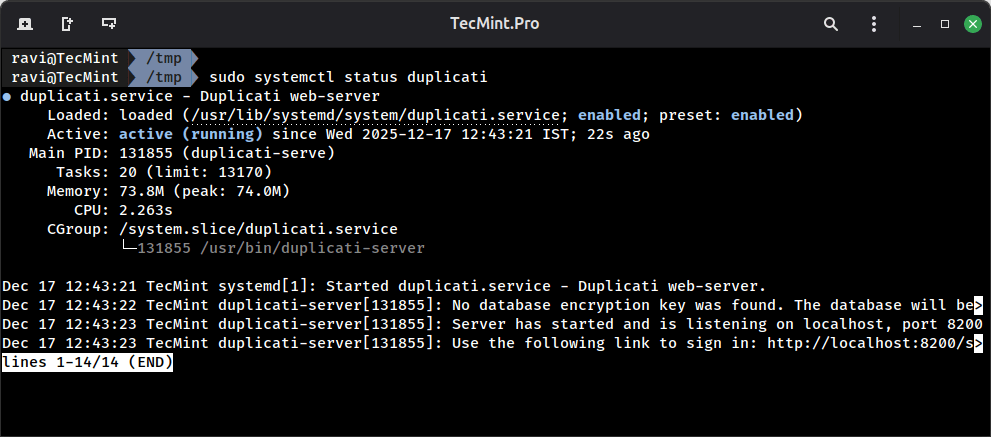
Now that Duplicati is running, open your web browser and navigate to.
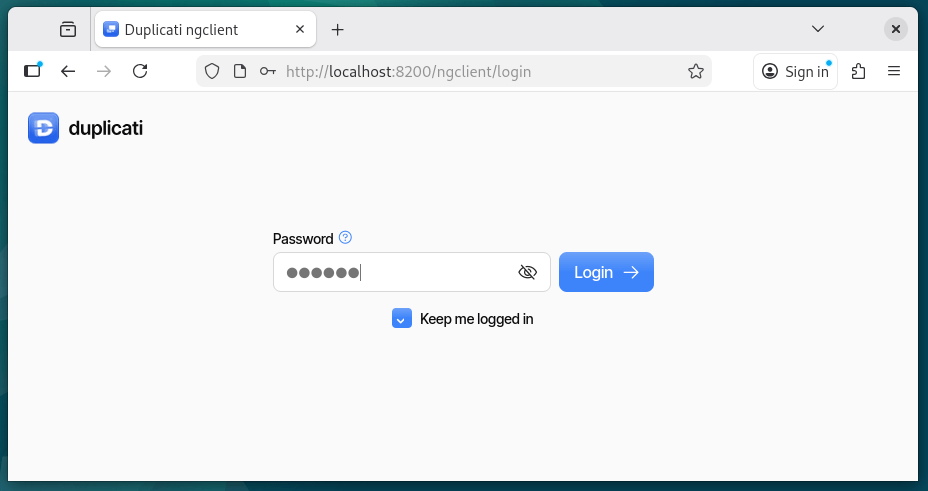
http://localhost:8200
You'll see the Duplicati web interface, which will prompt you to set a password to protect your backup configurations and encryption keys.
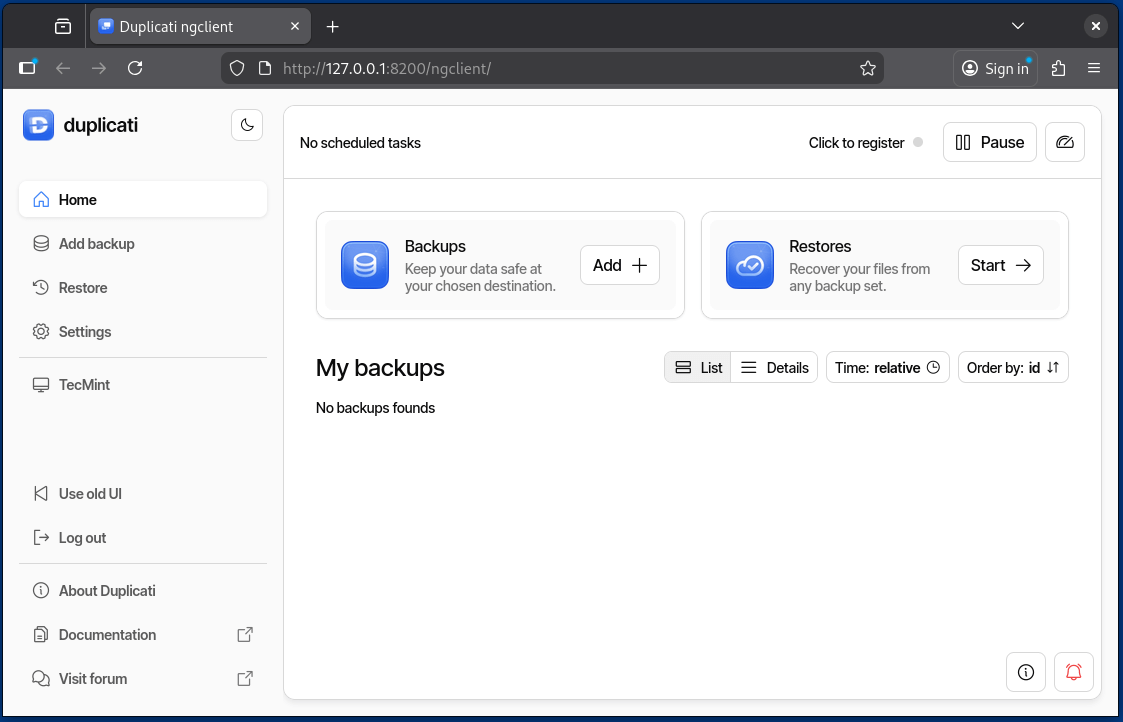
Once the password is saved, the web interface reloads, and you’ll see the Duplicati dashboard.